Wingdings Image Translator – Decode Wingdings Images
Decode Wingdings images instantly. Upload a screenshot and convert symbols to text.
Wingdings has been confusing people and sparking curiosity since 1990. Whether you have stumbled across a mysterious screenshot, received a cryptic message in a game, found a vintage document with unreadable symbols, or simply want to know what those strange pictograms say — this decoder gives you the answer in seconds.
Upload your image, select your font variant, and decode.
It really is that straightforward. And because the entire process happens in your browser with no server communication, it is also completely private.
If you find the tool useful, bookmark this page and share it with anyone who sends you Wingdings screenshots in the future. Because if they do it once, they will almost certainly do it again.
Wingdings image translator instead of manually matching symbols one by one, it reads Wingdings from screenshots or images and converts them back into readable text within seconds.
What Is a Wingdings Image Decoder?
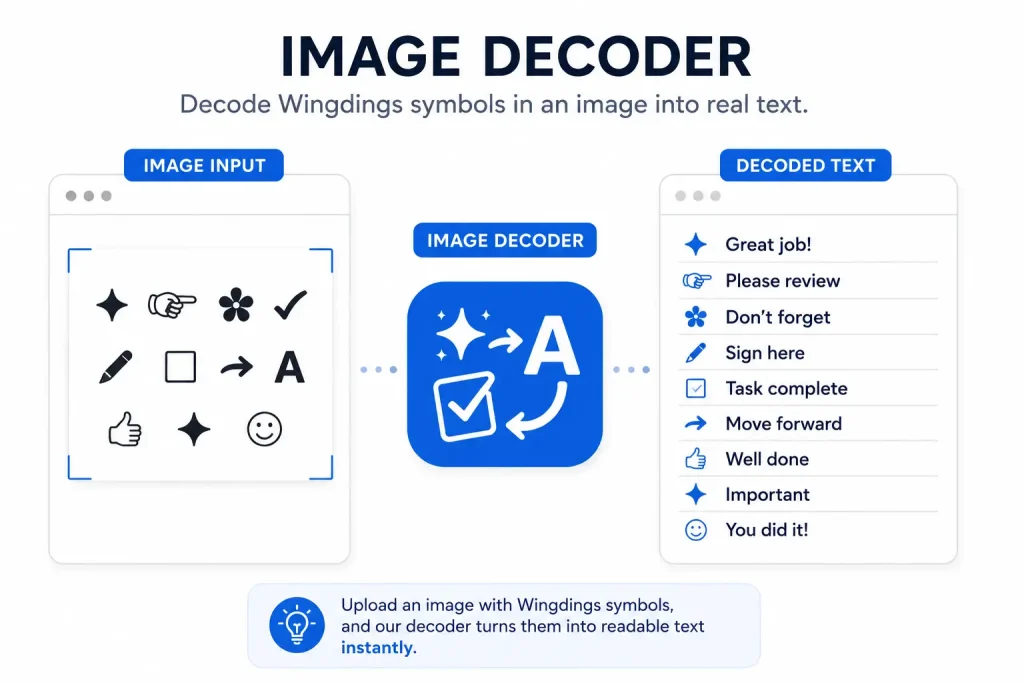
A Wingdings image translator is a tool that reads an image or screenshot containing Wingdings symbols and converts them back into plain, readable English. Instead of spending ten minutes cross-referencing each mysterious symbol against a Wingdings character chart, you upload the image and the decoder does the work in seconds.
The reason such a tool needs to exist at all comes down to a quirk in how Wingdings works. Unlike a normal font, Wingdings does not represent letters visually — it replaces them entirely. When someone types the word “HELLO” using the Wingdings font, what appears on screen is a series of five unrelated pictographic symbols: a wavy aquarius-like shape, a scorpio-like tail, a filled circle, another filled circle, and an empty square. There is nothing in those pictures that hints at the original letters unless you already know the encoding.
When that Wingdings text gets saved as an image or shared as a screenshot — which is extremely common in social media posts, memes, forum threads, and games — the connection to the original keyboard input is completely invisible. A decoder restores it.
A Brief History of Wingdings
Wingdings was created by Bigelow & Holmes in 1990 and released by Microsoft as part of Windows 3.1. The name is a portmanteau of “Windows” and “dingbats,” a printing term for decorative typographic symbols that dates back to the era of movable type. Typesetters used metal dingbats — small ornamental pieces — to fill space, separate sections, and add visual interest to pages. Wingdings brought that tradition into the digital age.
The original Wingdings font contains 226 symbols covering a remarkable range of categories: scissors, telephones, pointing hands, smiley faces, celestial symbols, geometric shapes, card suits, musical notes, and more. Each symbol is mapped to a printable ASCII character, meaning the font can be “typed” on any standard keyboard.
Microsoft later released three related fonts. Wingdings 2 (1992) expanded the collection with additional ballot boxes, star shapes, and arrow styles. Wingdings 3 (1992) focused almost entirely on arrows — a vast collection of directional indicators in every style imaginable. Webdings (1997) was Microsoft’s answer to the emerging web, featuring icons suited to digital communication: globes, computers, at-symbols, recycling icons, and objects that predated modern emoji by nearly a decade.
Interestingly, many Webdings characters were incorporated into the official Unicode standard in 2014, finally giving them cross-platform support without requiring a specific font. But millions of documents, messages, and images created with the original Wingdings fonts before that standardization remain encoded in the old proprietary system — which is exactly why decoders are still in high demand.
Why People Still Use and Need Wingdings Decoders
Wingdings might seem like a relic of the 1990s, but searches for Wingdings image translator remain consistently strong for several very practical reasons.
Secret Messages and Social Media
Wingdings became culturally embedded as a go-to method for encoding “secret” messages. From early internet forums to modern TikTok trends, people regularly share images where text is written in Wingdings as a puzzle or inside joke. The message “can you read this?” written in Wingdings symbols carries a playful challenge that has never really gone out of fashion.
Games and Puzzles
Several popular games use Wingdings or Wingdings-like symbol fonts as part of their storytelling. The indie game Undertale uses a custom font called “WingDings” for one of its central characters, and players routinely share screenshots of in-game dialogue hoping to decode what the character is saying. Horror games and alternate reality games (ARGs) frequently embed Wingdings messages as discoverable secrets.
Legacy Documents and Office Files
In corporate and educational environments, older Microsoft Word and PowerPoint documents sometimes contain Wingdings symbols used as bullet points, decorative elements, or checkboxes. When those documents are converted to PDF or saved as images, the symbols no longer carry font metadata and must be decoded visually.
Education and Cryptography Exercises
Teachers commonly use Wingdings as a simple, visually engaging introduction to substitution ciphers and basic cryptography. Students receive an image containing a Wingdings-encoded message and must decode it, often as a classroom activity or take-home exercise. An image decoder makes verification fast and instant.
Meme Culture
The “Wingdings” meme format — posting a message in symbols and waiting for reactions — cycles back into popularity every few years. During these periods, traffic to Wingdings decoder tools spikes sharply as curious readers look for quick answers.
Understanding the Four Supported Font Variants
Our image decoder supports all four original Microsoft Wingdings font variants. Understanding the differences helps you choose the right decoding option and get accurate results.
Wingdings (Classic)
The original 1990 font is by far the most commonly encountered variant. It covers the full printable ASCII range from space through the tilde character (codes 32–126). Capital letters A through Z map to a mix of symbols including scissors, telephones, cursors, faces, and celestial objects. Lowercase letters a through z produce a different set including pointing hands, thumbs up and down icons, hearts, and musical notes. Numbers 0–9 produce simple geometric shapes: open circles, filled circles, open and filled squares and diamonds.
Classic Wingdings is the variant used in virtually all “secret message” social media posts and games, making it the correct choice when you have no other information about the source.
Wingdings 2
Released alongside the original, Wingdings 2 expands the decorative symbol vocabulary with an emphasis on ballot-style checkboxes, more elaborate star and starburst shapes, and additional scissor styles. It is most commonly encountered in formal documents and presentations where its ballot box symbols (☐ ☑ ☒) were used before Unicode standardized those characters. If your image contains box-and-check-style symbols, Wingdings 2 is likely the correct variant.
Wingdings 3
Wingdings 3 is almost entirely composed of arrows in an enormous variety of styles: outlined arrows, filled arrows, bold arrows, double arrows, curved arrows, circular arrows, and combination arrows. It was designed as a comprehensive toolkit for presentation designers who needed precise directional indicators. If your image consists primarily of arrows pointing in various directions, select Wingdings 3.
Webdings
Webdings has the most recognizable symbols of the four fonts because many of them correspond directly to modern emoji. A globe, a heart, a telephone, a key, a camera, a flame — all of these appear in Webdings and all have obvious modern counterparts. Webdings is occasionally used in web-era documents from the late 1990s and early 2000s. If your image contains symbols that look like they could be early emoji or web icons, Webdings is likely the correct choice.
How the Wingdings Image Translator Works
The decoder processes your image entirely in your browser. Nothing is uploaded to a server and no personal data is transmitted anywhere. Here is what happens when you click Decode.
Step 1: Image Normalization
The tool first scales your image to a manageable resolution (maximum 1,800 pixels on the longest side) while preserving the aspect ratio. This ensures the decoder runs quickly regardless of whether you uploaded a small phone screenshot or a large high-resolution scan.
Step 2: Greyscale Conversion
The image is converted to greyscale using the standard luminance formula (0.299 × Red + 0.587 × Green + 0.114 × Blue). This removes color information that is irrelevant to symbol identification and ensures consistent processing regardless of whether the original Wingdings text was black, colored, or displayed on a non-white background.
Step 3: Symbol Segmentation
A binarized (black and white) version of the image is used to find the bounding box of each individual symbol. The algorithm scans rows to identify text lines, then scans columns within each line to isolate individual characters. Adjacent symbol fragments are merged intelligently so that complex multi-stroke symbols are not split into separate detections.
Step 4: Template Matching
For each detected symbol region, the decoder extracts a normalized thumbnail — preserving the symbol’s original aspect ratio through letterboxing so wide symbols are not distorted into squares. This thumbnail is then compared against pre-rendered templates of every Wingdings character using Normalized Cross-Correlation (NCC), a mathematical technique that measures pixel-level similarity while accounting for differences in brightness and contrast. The character whose template produces the highest correlation score is selected as the match.
Step 5: Text Assembly
The decoded characters are assembled left-to-right in the order they were detected, and the result is displayed in the output panel along with a confidence percentage reflecting the average NCC score across all matched symbols.
Tips for Getting the Most Accurate Decoding Results
The decoder performs best on clean, high-contrast images. A few simple practices dramatically improve accuracy.
Use High-Resolution Screenshots
The larger the Wingdings symbols in your image, the more pixel information is available for the template matching algorithm to work with. Symbols that are at least 24 pixels tall tend to decode very accurately. Tiny symbols — say, 10–12 pixels — may produce errors because there are not enough pixels to reliably distinguish between visually similar characters.
If you have access to the original document, take a screenshot at 150% or 200% zoom before uploading. A bigger screenshot with larger symbols will almost always produce better results than a small one.
Ensure Strong Contrast
Black symbols on a white background produce perfect results. Dark symbols on a light background work nearly as well. Problems arise with light symbols on light backgrounds, colored symbols on colored backgrounds, or symbols overlaid on complex images. If your image has a patterned or photographic background, try adjusting the contrast in any image editor before uploading.
Minimize Noise and Compression Artifacts
JPEG compression introduces small pixel-level artifacts called “ringing” that can confuse the segmentation step. If you have a choice, save your screenshot as PNG before uploading — PNG is lossless and preserves sharp symbol edges exactly as they appear on screen. If your image is already a JPEG, the decoder will still work, but accuracy may be slightly lower for very small symbols.
Select the Correct Font Variant
The single most common cause of incorrect decoding is selecting the wrong Wingdings variant. Classic Wingdings is the right choice for the vast majority of cases. If you get a result that looks like it could be correct but has a few wrong letters, try switching to a different variant — Wingdings 2, 3, and Webdings each share some visual similarities with the original that can cause misidentification.
One Line at a Time for Complex Images
If your image contains multiple lines of Wingdings text with very different symbol sizes, or lines of regular text mixed with Wingdings text, try cropping to a single line of Wingdings symbols and decoding that cropped image separately. The segmentation algorithm works most reliably when all symbols are approximately the same size.
How Wingdings Compares to Other Symbol Encoding Systems
Wingdings is technically a substitution cipher — a system where each letter is consistently replaced by a specific symbol. Understanding where it sits among similar systems helps clarify both its usefulness and its limitations as a form of encoding.
Wingdings vs. Actual Ciphers
A true cipher like Caesar, Vigenère, or AES encryption makes messages genuinely difficult or impossible to decode without the key. Wingdings offers no such security. Because the mapping between letters and symbols is publicly documented and completely fixed, anyone with a Wingdings chart — or a decoder like this one — can read a Wingdings message instantly. Its value is in obscurity (most people don’t immediately recognize the symbols), not in cryptographic strength.
Wingdings vs. Unicode
Unicode Consortium is the global standard for encoding text characters. Where Wingdings assigns meaning through a proprietary font, Unicode permanently encodes characters at the specification level so they display correctly on any device in any font. Many Wingdings symbols have direct Unicode equivalents — ♥ (U+2665), ★ (U+2605), ☎ (U+260E) — but the full Wingdings character set was never completely absorbed into Unicode, leaving a gap that requires font-specific decoding for older content.
Wingdings vs. Emoji
Emoji are, in a meaningful sense, the spiritual successor to Wingdings — a cross-platform standardized set of pictographic characters built into the Unicode standard. Where Wingdings required a specific Microsoft font and failed on systems where that font wasn’t installed, emoji work everywhere because they are part of the base character encoding rather than a display layer on top of it. Webdings, the youngest of the four supported fonts, was explicitly designed for web use and anticipated the need for standardized pictographic icons by nearly two decades.