
Wingdings Translator – Convert Text to Symbols Instantly
Browse Character Chart
Explore all symbols
Decode Symbols
Convert to text
Copy Symbols
Copy & use anywhere
Learn wingdings
Guides and examples
Have you ever received a message full of strange symbols and had no idea what it said? A Wingdings translator solves that in seconds. It converts your normal text into Wingdings symbols and decodes symbol messages back into plain English. People use it for fun, gaming, social media, design projects, and secret messages. The tool works both ways, supports all three Wingdings versions, and needs no signup. Just type and go.
What Is a Wingdings Translator and How Does It Work?
Wingdings is a dingbat font series made by Microsoft. Instead of showing letters when you type, it shows symbols. Every key on your keyboard maps to a unique symbol in the Wingdings font system. Symbol fonts like Wingdings replace the alphabet with arrows, hand gestures, religious symbols, and everyday objects.
A Wingdings converter reads each letter you type and swaps it with its matching symbol. It’s not a real language with grammar or meaning. Think of it as a visual code. A Wingdings decoder does the opposite: it takes those symbols and turns them back into letters you can read.
For example, type HELLO, and the tool instantly shows the Wingdings symbol version. Someone seeing that message without a decoder would just see a row of odd icons. Paste it back in, and it’s readable English again. The whole thing happens in real time as you type.
Translation Examples
To understand how the tool works, here is how your text transforms:
HELLO
Input You Give
♒︎♏︎●︎●︎□︎
Output It Gives
History of Wingdings
Wingdings was designed by Charles Bigelow and Kris Holmes, the typographers who also created the Lucida font family. Working under commission from Microsoft’s typography team, Bigelow and Holmes hand-drew 226 characters covering hand gestures, religious icons, weather symbols, and punctuation marks. The font shipped with Windows 3.1 in 1992. Zapf Dingbats established the concept of a typeface composed entirely of decorative symbols rather than letters.
It was built by combining three older fonts: Lucida Icons, Lucida Arrows, and Lucida Stars. The goal was to give designers a font filled with useful symbols instead of letters.
Today, there are three versions. Wingdings 1 is the original and most recognized. Wingdings 2 added more decorative shapes, and Wingdings 3 focused on arrows and directional symbols. This tool supports all three.
Wingdings Symbols Chart: Copy Any Symbol Instantly
The Wingdings alphabet translator chart on this page is your visual reference for every symbol in the font. Each card shows you the symbol, the keyboard key it maps to, and its Unicode value.
Some of the most-used symbols in the chart include the Checkmark, Ballot X, Heavy Checkmark, Smiley Face, Right Pointer, Peace symbol, Telephone, Envelope, Hourglass, and Black Circle. Use the copy button on any card to grab a symbol instantly, or hit ‘Use in Translator’ to load it directly into the tool.
Think of this Wingdings translator chart as your go-to reference when you need one specific symbol quickly.
How to Use the Wingdings Translator Step by Step
Using our tool is incredibly straightforward, even if you have never used a symbol converter before. We have designed the interface to be fast and responsive so you can get your results without any unnecessary clicking.
Follow these five simple steps to get started:
Type Your Text
Go to the input box at the top of the page and type the English words you want to convert. If someone already sent you a bunch of symbols and you want to read them, just paste those in instead.
Choose a Direction
Think about what you really need. If you want a symbol message, select the English to Wingdings translator option. If you have unreadable symbols and want them decoded, change them to the other direction.
Pick a Version
There are three versions, and each has a different collection of symbols. Use the Wingdings 1 translation, Wingdings 2 translator, or Wingdings 3 translator and see which one works for the look you want.
Watch It Convert
No button to push or waiting for the page to load stuff. The tool logs what you’re type and translates it instantly, letter by letter.
Copy and Paste
Once your converted text shows up, hit the copy button and paste it wherever you need it. A Discord message, a Word document, your Instagram bio, it goes anywhere.
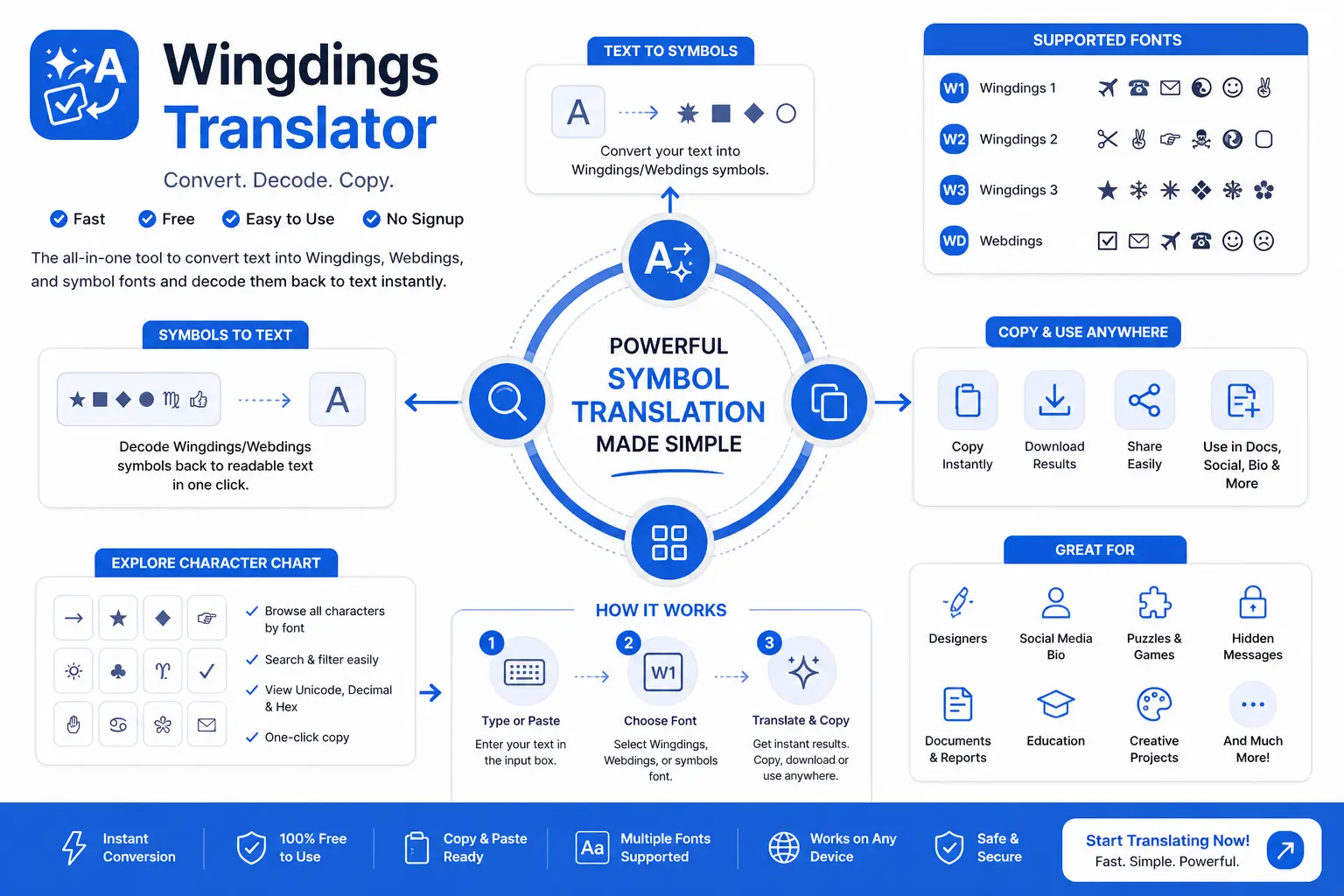
Key Features of the Wingdings Translator
There’s more to this tool than just switching letters to symbols. Here’s a look at what it actually does.
Instant Conversion
The second you start typing, the result starts showing up. You’re not clicking a button and waiting. It just works as you go, and it feels smooth whether you’re on a phone or a laptop.
You Type
HELLO
Output
♒︎♏︎●︎●︎□︎
Two-Way Translation
Switch between English to Wingdings and Wingdings to English translator with one click. There’s no need for a separate decoder tool. This one handles full sentences, single words, and everything in between.
ENG ↔ Symbols
HELLO
Symbols ↔ ENG
♒︎♏︎●︎●︎□︎
Supports All Versions
You can switch between the Wingdings 1 translator, Wingdings 2 translator, and Wingdings 3 translator at any point. Each version has a different symbol set, so try a few and see which output suits your project best.
W1
Wingdings 1
W2
Wingdings 2
W3
Wingdings 3
One-Click Copy Button
Once your text is translated, copy it with a single tap. No manual selection or formatting needed. Paste it straight into social media, a chat, a design file, or anywhere else.
♒︎♏︎●︎●︎□︎
Symbol Reference Chart
A complete Wingdings translator chart is built into this page. Every symbol card shows the keyboard key it maps to, its Unicode value, a copy button, and a direct ‘Use in Translator’ button. It’s the fastest way to grab one specific symbol without typing through the tool.
Symbol | Key | Unicode | Action |
Shift+* | U+2605 |
100% Free & Easy to Use
No sign up. No hidden limits. Just a fast, free, and user-friendly tool for everyone.
No Sign up
100% Free
Works Anywhere
English to Wingdings: Convert Text to Symbols
Most people come here because they want to turn regular text into symbols. The English to Wingdings translator handles that letter by letter, matching each character to its symbol from the Wingdings font map.
What People Use It For
It works for full sentences, not just single words. Type a whole paragraph in English to Wingdings and every character gets converted cleanly.
Wingdings to English: Decode Any Symbol Message in Seconds
Sometimes you’re on the receiving end. Someone sends you a bunch of symbols and you can’t read them. Just paste that text into the tool, switch to Wingdings to English, and the message is decoded immediately.
When You’d Need This
This Wingdings decoder works just as accurately as the forward direction. If the original text used standard Wingdings 1, the decoded output will be exact.
Wingdings Translator for Undertale and W.D. Gaster Fans
Wingdings Translator for Undertale and W.D. Gaster Fans
If you’ve played Undertale, you’ve probably come across cryptic symbol messages that most players can’t read. Those symbols aren’t random. They’re real Wingdings text, and W.D. Gaster uses them as his main way of speaking in the game.
This Wingdings translator Undertale fans use works perfectly for decoding Gaster’s messages. His speech follows standard Wingdings 1 mapping, so every message decodes accurately. Some content in Deltarune uses the same system, making this Wingdings translator Gaster tool useful for both games.
Decode Gaster Messages
Paste his dialogue symbols into this tool, select Wingdings to English, and his actual words appear right away. Simple as that. This WD Gaster Wingdings translator handles every message accurately without any extra steps.
Fan Community Use
Fan communities on Reddit, Discord, and Tumblr write lore theories and fan fiction encoded in Wingdings. The Wingdings language translator helps both new and longtime fans read and join those conversations without missing anything.
Visual Chart Guide
This Wingdings alphabet translator chart shows each letter A-Z translated into its corresponding symbol. Also included are their equivalents for numbers and punctuation. You may want to screenshot or bookmark this chart so you have it handy even offline
Wingdings 1 vs Wingdings 2 vs Wingdings 3: Key Differences
There are three separate Wingdings versions, and each uses a completely different symbol set. Picking the right one saves you time.
Feature | Wingdings | Webdings | Wingdings 2 | Wingdings 3 |
|---|---|---|---|---|
Icons & Symbols | ||||
Numbers & Letters | ||||
Best For | Puzzles, Design | Web, Ul, Icons | Advanced Symbols | Omarents, Shape: |
Examples | ☟︎♏︎●︎●︎□︎ | 🏻🎌🏿🏿🐂 | ✑✎✕✕✘ | ↕→↙↙↜ |
For most everyday use and anything related to Undertale, the Wingdings 1 translator is your best choice. For decorative design work, try Wingdings 2. For arrows and navigation symbols, go with Wingdings 3. You can switch between all three in the tool without starting over.
Wingdings and Emojis: What Is the Difference?
Wingdings symbols and emojis are not the same thing. Wingdings are font-based characters that depend on the Wingdings font being applied to display correctly. Emojis are Unicode symbols characters that look the same on every device, regardless of font.
Why It Matters for Your Output
Some Wingdings emoji translator tools blend both systems, which can cause compatibility issues in design software, documents, or presentations. This tool keeps them separate. Your output is clean, font-based Wingdings text with nothing extra added.
So if you’ve been searching for a Wingdings translator no emoji option, this is it. The output is pure Wingdings, ready to use anywhere.
Wingdings Code Translator: Sending Secret Messages the Fun Way
Wingdings isn’t a real encryption system, but that’s kind of what makes it fun. When someone sees your encoded message and has no idea what it says, it creates exactly that feeling of “only certain people can read this,” which is why people love using a Wingdings code translator for escape rooms, scavenger hunts, and puzzle activities.
Creative Ways People Use It
It’s not real encryption, but as a visual disguise, it does the job well and takes about ten seconds to set up.
Does This Wingdings Translator Support Voice Input?
This is a common search, so it’s worth answering directly. A built-in Wingdings translator with voice feature isn’t part of most web-based tools right now, and that includes this one. The input box works with typed text.
The Easy Workaround
Most phones and computers have a built-in voice-to-text feature. On Android or iOS, tap the microphone icon on your keyboard and speak your text. Your device types it out in the input box, and the translator converts it right away. It takes about five extra seconds and works just as well.
Why Our Wingdings Translator Stands Out
Most people tried other Wingdings translators before and had problems like slow speed or confusing design. Here’s what this one does differently.
Compared to tools like Wingdings translator and LingoJam-style websites, this one loads faster and gives you more control over your output in a much cleaner layout.
Who Uses a Wingdings Translator and Why
A Wingdings translator is used by different types of users for fun, creativity, and decoding symbol-based messages. It helps turn normal text into symbols and makes content more unique and engaging.
Frequently Asked Questions
Start Using the Wingdings Translator in 2026
There’s nothing stopping you. No download, no account, no setup. Just scroll to the top of this page, type your text into the online Wingdings translator, and your result appears instantly.
Whether you’re going from English to Wingdings, using the Wingdings to English translator to decode a message, or browsing the chart for one specific symbol, it’s all in one place and ready to go.
More Powerful Features
Built for Speed, Simplicity & Productivity.
Browse Character Chart
Fast & Lightweight